A reason behind every state
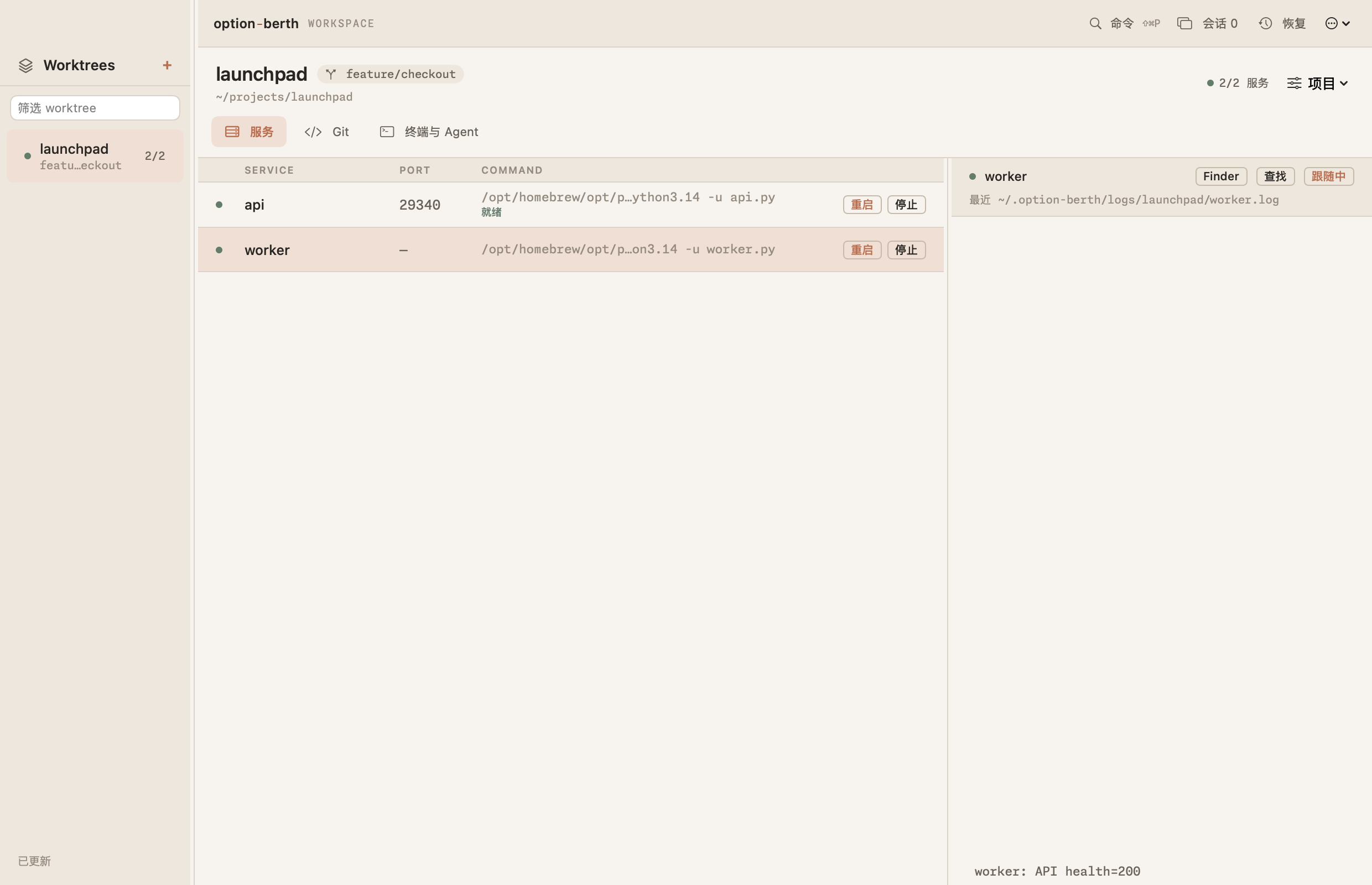
Your manifest says what should run. Run records and observations show what does. Trace services, ports, exits and logs without guesswork.
Local first · Native macOS · Open source
A clearer place for parallel development. Keep each worktree’s services, Git context, terminals and agent sessions together. Less guessing. More time with your code.
Actual macOS windows, captured with an isolated demo project. Select an image to see the original.
Your manifest says what should run. Run records and observations show what does. Trace services, ports, exits and logs without guesswork.
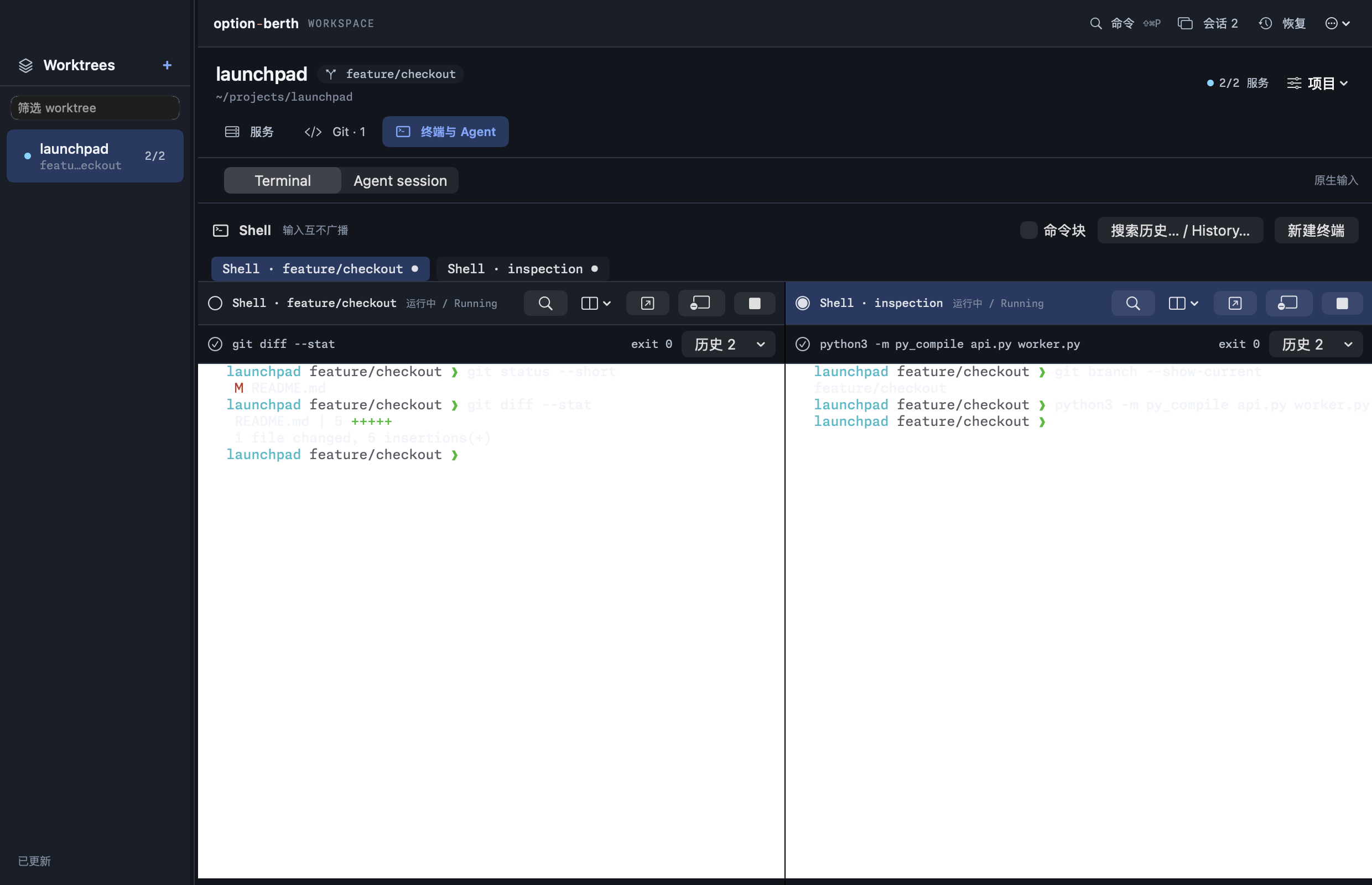
Every session keeps its starting worktree. Switching checkouts never silently moves a terminal or mixes up project services.
A native terminal hosts your shell and existing coding agents. No new chat system to migrate to. No cloud workspace required.
02 / THE WORKFLOW
The app and CLI share one chain of runtime facts. You make the decisions; option-berth keeps the state and next step in view.
Choose a code directory. Read an existing manifest, or review and accept a new one. An agent can draft it, but the final choice is yours.
oberth initStart declared services in dependency order and check their actual runtime and readiness. Machine dependencies remain read-only.
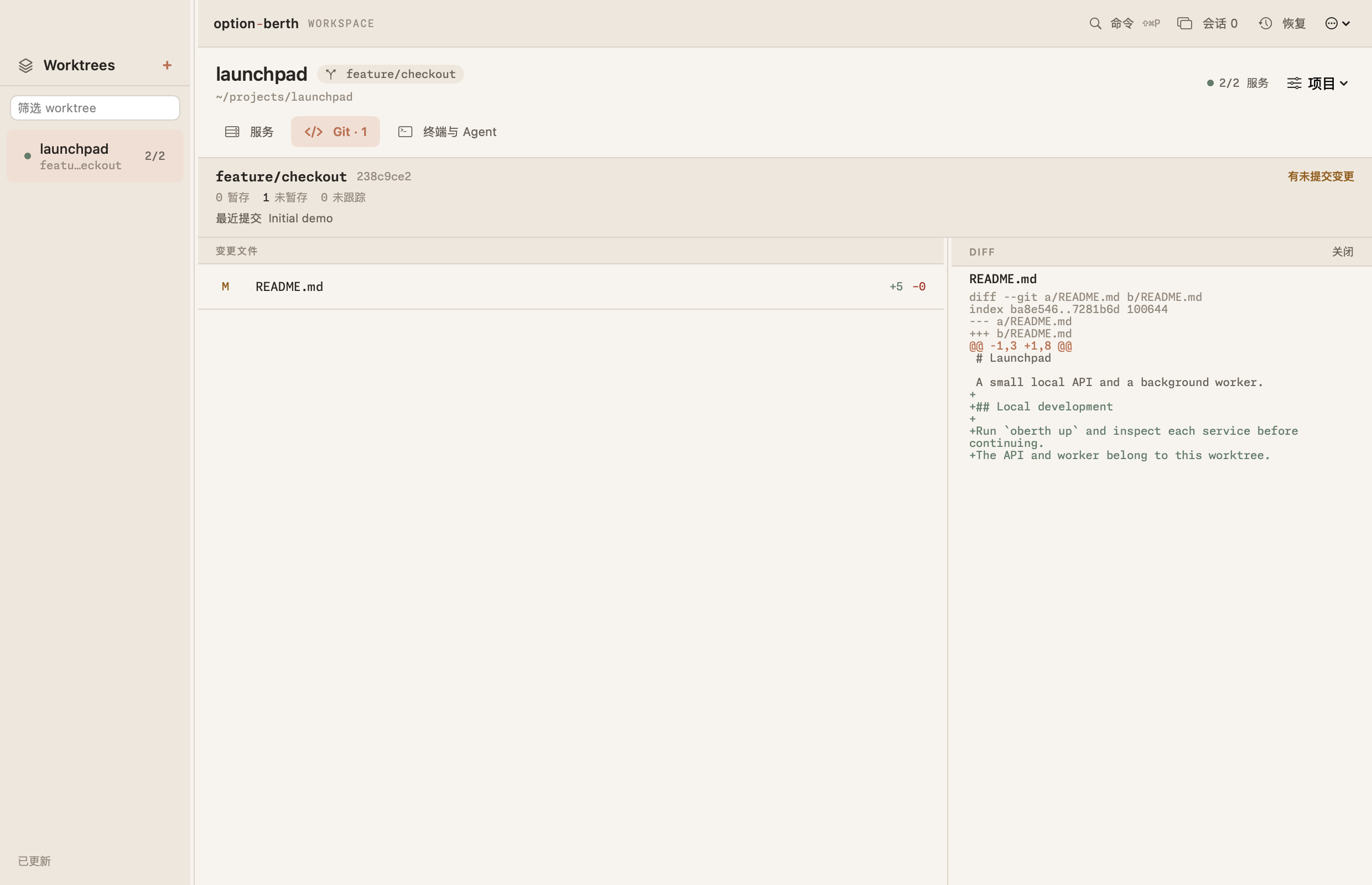
oberth up oberth statusOpen logs from a service, inspect a Git diff, or continue in a terminal. Stop this project when you are done, without touching another worktree.
oberth logs oberth down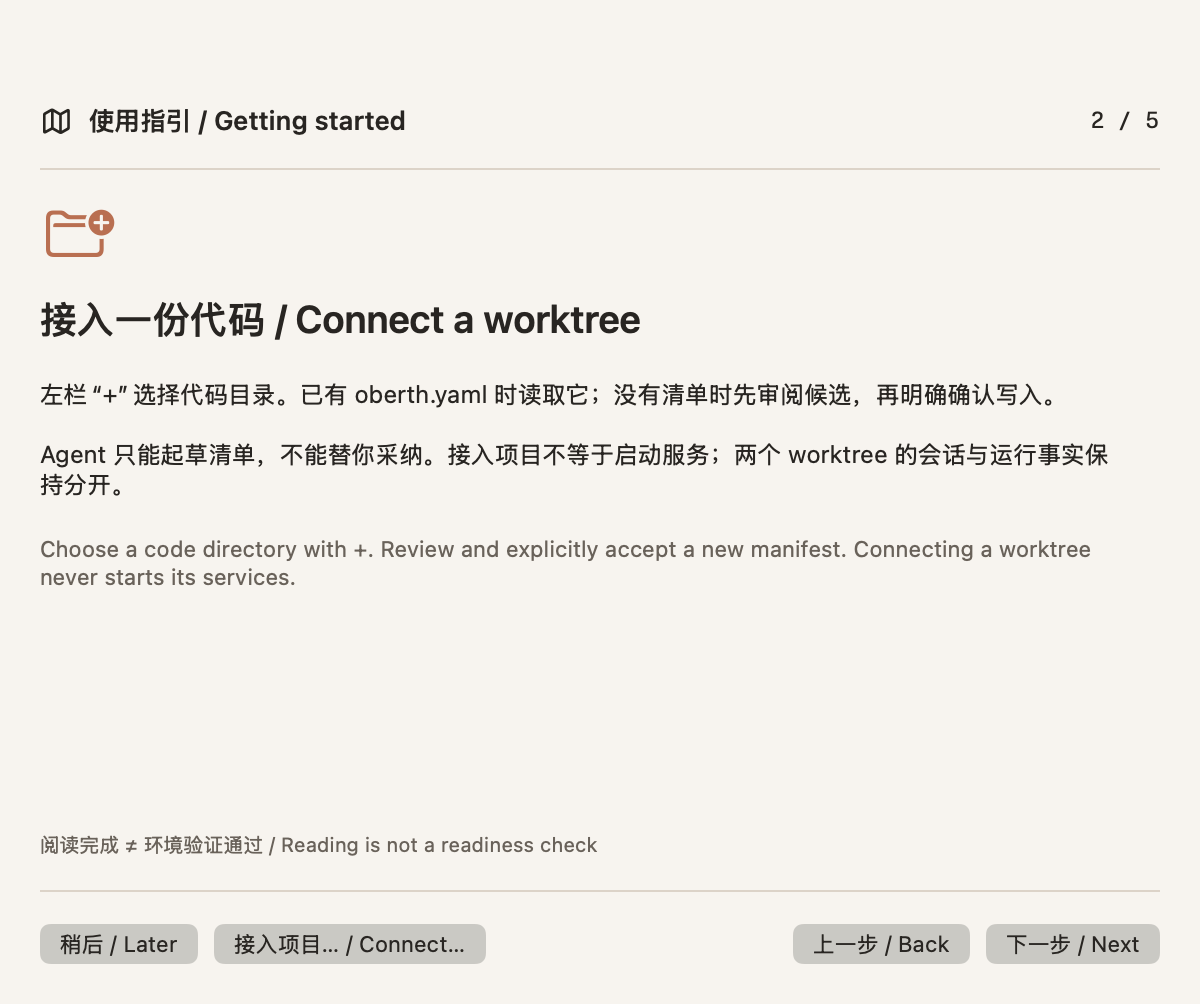
Skip it. Reopen it. Reading is not a readiness check.
03 / YOUR TOOLS, TOGETHER
Keep terminal and agent sessions beside the code they work on, without taking over their reasoning, authentication or approvals.
Use the first message to start an external agent session. Continue the conversation in its own native terminal. Return still inserts a newline.
Install and authenticate the tools you need. Launch explicitly and resume where supported. No automatic installs or approval bypasses.
OpenCode · Codex · Claude Code
DeepSeek Harness · Pi
04 / LESS RETRACING
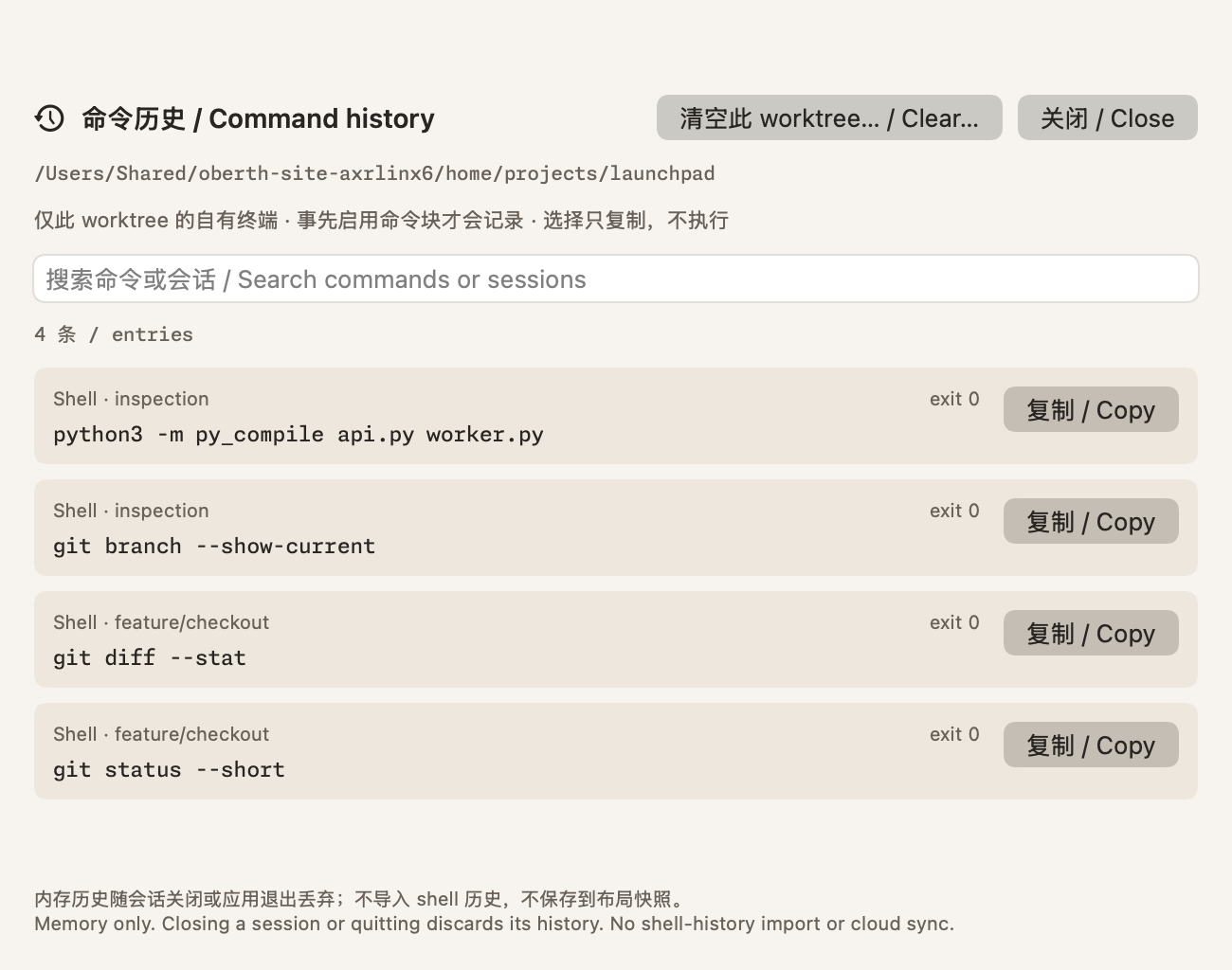
Search commands and session names across this worktree’s terminals. Keep exit results explicit. Copy the literal command without executing it. Confirm before clearing.
Enable zsh command blocks beforehand. History lives in memory and is discarded when a session closes or the app quits. Shell-history files are not imported.
05 / CLEAR BOUNDARIES
A local development workspace, not another agent platform. Each state, permission and side effect has a clear owner.
Declarations, runs and observations come from code. Unknown is not success. A stop request is not proof of an exit.
Product Git actions are read-only; manifests need your approval. External shells and agents keep their own permissions. A worktree is not an OS sandbox.
Opt in to saving essential layout metadata, not prompts, output or PIDs. Restoring a layout never resurrects a process. No cloud sync.

READY WHEN YOU ARE
A native macOS app with its matching oberth engine. Or use the CLI on its own, inside the workflow you already have.
The macOS app requires Apple Silicon and macOS 14+. Current builds are ad-hoc signed, not Developer ID signed or Apple notarized.
Get packages from the official GitHub Release and check SHA256SUMS. The macOS package includes its matching engine. Ad-hoc signing is not Apple trust or notarization. Installation and upgrades are explicit; the app does not replace itself or stop your existing services. Windows and Linux packages are CLI-only, not desktop apps.
Read the client guide ↗